
Download PrintDeskTop – Free Screen Printing Tool for Windows & Mac with Keyboard Shortcut
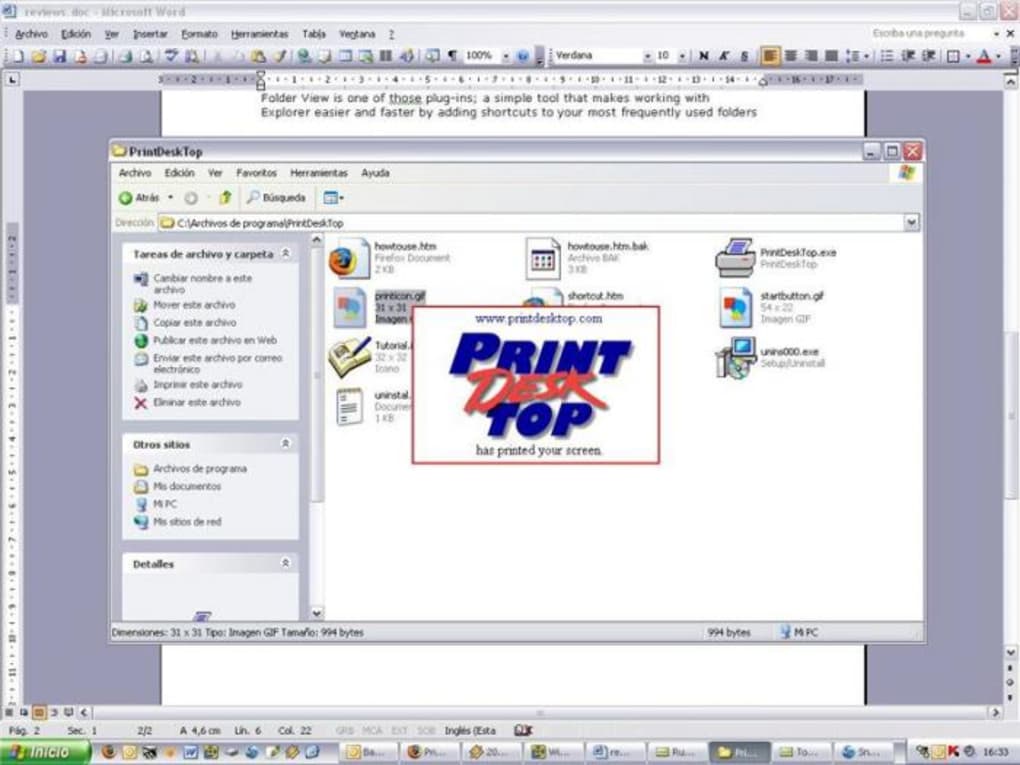
PrintDeskTop is a lightweight and secure software tool that allows you to print your screen directly to paper using a simple keyboard shortcut. Unlike the standard Print Screen (PrtScr) function, PrintDeskTop sends your screen capture straight to your home printer—no clipboard needed. Ideal for students, office workers, and casual users, this free app simplifies the process of printing visual content from your computer.
With fast installation, minimal system impact, and cross-platform support for Windows and Mac, PrintDeskTop delivers a hassle-free printing experience. Whether you're printing a webpage, a presentation slide, or a game screenshot, this tool ensures quick, accurate results. Regular updates keep the software secure and compatible with the latest OS versions.
Download PrintDeskTop today and streamline your workflow with one-click screen printing.
Simple Yet Powerful: How PrintDeskTop Streamlines Screen Printing
PrintDeskTop redefines the way users interact with screen printing by eliminating the need to copy images to the clipboard and paste them into a document before printing. Instead, this tool captures your entire screen in real time and sends it directly to your printer with just a single keyboard shortcut—typically Ctrl+P or Cmd+P depending on your operating system. This seamless integration saves valuable time, especially when you're printing multiple screenshots or need to quickly share visual content with colleagues or instructors.
One of the standout benefits of PrintDeskTop is its minimal resource usage. The software runs quietly in the background without consuming significant CPU or RAM, ensuring that your computer remains responsive even during intensive tasks. The installation process is straightforward: download the installer from the official website, run it, and follow the on-screen prompts. Once installed, the app automatically integrates with your system’s keyboard shortcut manager, allowing you to assign your preferred key combination. There’s no need for complex configuration or technical knowledge—just install, set your shortcut, and start printing.
For students preparing study notes, office employees sharing reports, or content creators archiving visuals, PrintDeskTop offers a practical solution. It’s particularly useful when you need to print high-resolution screen content without the hassle of formatting or resizing. The app supports both color and black-and-white printing, ensuring that your printed output matches your screen exactly. While it lacks advanced editing features, its core functionality is rock-solid and reliable. With regular updates and a clean user interface, PrintDeskTop remains a dependable choice for anyone who values speed, simplicity, and efficiency in their daily computing tasks.
Key Features That Make PrintDeskTop a Must-Have Tool
PrintDeskTop may be simple, but it packs a punch with essential features designed to enhance productivity. One of the most appreciated features is the keyboard shortcut printing. With a single press, you can capture and print your entire screen instantly—no extra steps, no delays. This feature is especially beneficial during presentations, live tutorials, or when documenting software bugs.
Another major advantage is cross-platform compatibility. Whether you're using Windows 10/11 or macOS, PrintDeskTop delivers consistent performance across both operating systems. The software is optimized for modern hardware and supports high DPI displays, ensuring that printed output remains sharp and clear. Additionally, it works seamlessly with most standard inkjet and laser printers, making it accessible to a wide range of users.
The tool also includes automatic updates that keep the software secure and bug-free. Developers regularly release patches to improve stability and fix compatibility issues with new OS updates. This commitment to maintenance ensures long-term usability. Furthermore, PrintDeskTop is free to download and use, with no hidden fees or ads. While the trial version offers full functionality, the free edition includes all core features, making it a cost-effective solution for personal and professional use.
For users who need more control, the app offers basic settings such as print quality selection and default printer preference. Although customization is limited compared to advanced tools, the available options are sufficient for most everyday needs. The clean, intuitive interface ensures that even first-time users can navigate the app with ease.
- One-click screen printing via customizable keyboard shortcut
- Supports Windows and Mac operating systems
- Lightweight and fast – minimal impact on system performance
- Automatic updates for security and compatibility
- Free to download and use with no ads or trial limitations
- High-quality output with support for color and black-and-white printing
Installation, Usage, and Compatibility Across Devices
Getting started with PrintDeskTop is a breeze. Begin by visiting the official website and downloading the installer tailored to your operating system—either Windows or Mac. The file size is small (under 10MB), so downloads complete quickly even on slower connections. Once downloaded, double-click the installer and follow the step-by-step instructions. The setup process takes less than a minute and requires no administrative privileges for basic operation.
After installation, launch the app from your system tray (Windows) or menu bar (Mac). You’ll notice a small icon indicating that PrintDeskTop is running. To assign your preferred keyboard shortcut, open the settings panel and choose from available combinations. The app uses the system’s native shortcut system, so you can use standard keys like Ctrl+P or Cmd+P. If you’re unsure, the default shortcut is clearly displayed in the settings.
Using PrintDeskTop is as simple as pressing your assigned key combination. When you do, the software captures your entire screen and sends it directly to your default printer. You’ll see a brief notification confirming the print job has been sent. No additional software or formatting is required—just print and go.
Compatibility is one of PrintDeskTop’s strengths. It runs smoothly on Windows 7 and later, including Windows 10 and 11. On macOS, it supports versions from High Sierra (10.13) up to the latest Sonoma release. The app is also compatible with both 32-bit and 64-bit systems. It works with all major printer brands, including HP, Canon, Epson, and Brother, as long as they are properly installed and recognized by your OS.
For users on Android or iOS, there is no native app, but you can still use PrintDeskTop on your desktop and print remotely via cloud services or screen mirroring tools. This makes it a flexible solution for hybrid work environments.
- Download installer for Windows or Mac
- Run installer and follow on-screen prompts
- Launch app and customize keyboard shortcut
- Press shortcut to capture and print screen
- Print job sent directly to your home or office printer
Pros and Cons: Is PrintDeskTop Right for You?
Pros
- Extremely fast and efficient – print your screen in seconds
- Free to download and use with no trial restrictions
- Lightweight and non-intrusive – doesn’t slow down your system
- Works on Windows and Mac with consistent performance
- Simple, intuitive interface – ideal for beginners
- Automatic updates ensure long-term reliability
Cons
- Limited customization options – no image editing or layout control
- Relies on system shortcut system – not fully integrated within the app
- No mobile app for Android or iOS devices
- Print quality depends on printer – not adjustable within the app
- Only prints full screen – no partial capture option
Frequently Asked Questions (FAQ)
Can I use PrintDeskTop on both Windows and Mac?
Yes, PrintDeskTop is available for both Windows and Mac operating systems. It supports Windows 7 and later, as well as macOS High Sierra (10.13) and newer versions.
Is PrintDeskTop free to download?
Yes, PrintDeskTop is completely free to download and use. There are no hidden fees, ads, or time-limited trials.
Can I change the keyboard shortcut?
Yes, you can customize the keyboard shortcut through the app’s settings. The tool uses your system’s native shortcut manager, so you can assign any available key combination.
Does PrintDeskTop support partial screen capture?
No, PrintDeskTop only captures the entire screen. If you need to print a specific window or region, you’ll need to use a different tool or manually crop the image.
Is PrintDeskTop secure?
Yes, PrintDeskTop is secure. It doesn’t collect personal data or send screen content to external servers. All processing happens locally on your device.
Final Verdict: A Must-Try Tool for Quick Screen Printing
PrintDeskTop may not be the most feature-rich screen printing tool on the market, but it excels in what it does best: printing your screen directly to paper with a single keystroke. For users who frequently need to print visual content—whether for school, work, or personal projects—this app offers a streamlined, reliable solution. Its lightweight design, cross-platform support, and free availability make it a standout choice in its category.
While the lack of advanced customization and partial capture features may be a drawback for power users, the simplicity is precisely what makes PrintDeskTop so effective for everyday tasks. It’s ideal for students taking notes, professionals sharing reports, and anyone who values speed and efficiency.
With regular updates, strong security, and a user-friendly experience, PrintDeskTop delivers on its promise. If you're tired of copying screenshots to documents just to print them, it’s time to try this free and secure tool.
Download PrintDeskTop today and transform your printing workflow—fast, simple, and completely free.







